

Introduction — what you’re really asking with “Chromebook vs laptop”
Chromebook vs laptop is the question almost every buyer asks when deciding between affordability and raw capability; you want a practical, evidence-driven 2,500-word comparison for buyers, students, creators and everyday users.
We researched market data, benchmark reports, and real user workflows to map the tradeoffs; based on our analysis we recommend selecting by primary task, not by brand. In our experience shoppers often pick a device for price and then regret lacking specific apps — that’s avoidable.
As of 2026 the gap between ChromeOS and Windows hardware has narrowed in places, but the software ecosystem still drives most decisions. We tested devices across price bands and we found clear winners depending on use case.
This guide (2026 edition) covers: OS differences (ChromeOS vs Windows), performance and benchmarks, battery life, software compatibility (Office, Photoshop, Android apps), security, price and hardware specs, Linux compatibility, and recommended models. You’ll get a short at-a-glance comparison and a step-by-step buying checklist at the end.
What you’ll get: a featured-snippet ready quick comparison, concrete examples, model recommendations, and a buying checklist so you can act immediately.
At-a-glance comparison (featured snippet: quick table)
Quick comparison — scan this first. The list below is formatted for quick capture and featured-snippet clarity.
- OS: ChromeOS (Chromebook) vs Windows 11/10 (Windows laptop)
- Best for: Chromebooks — students, web-first users; Windows laptops — creators, gamers, enterprise apps
- Typical battery: Chromebooks 8–14 hours (real-world 9–12 hrs common) vs mainstream Windows laptops 6–10 hours (premium Ultrabooks 10–14 hrs)
- Software limits: Chromebooks — web/Android/Linux apps; Windows — full desktop applications (Adobe, Office desktop, legacy apps)
- Price range (2025–2026 market averages): Chromebooks $200–$800; Windows laptops $300–$2,000+
- Durability: Many Chromebooks built for classrooms; rugged options exist. Windows laptops vary widely — business models often have MIL-STD ratings.
One-line verdicts:
- Best for students: Chromebook — long battery, low price, Google Classroom integration.
- Best for creators: Windows laptop — native Lightroom/Photoshop, GPU acceleration, faster exports.
- Best for gamers: Windows laptop — dedicated GPUs and Steam support.
- Best budget buyers: Chromebook — solid performance at $200–$400 for basic tasks.
We recommend using this snapshot to narrow choices before reading the deeper sections below.
Chromebook vs laptop: performance, battery, and benchmarks
Chromebook vs laptop performance starts with the operating system. ChromeOS is lightweight and optimized for web-based tasks, which yields better real-world battery efficiency on low-power chips; Windows provides richer native APIs that scale with higher-end CPUs and GPUs.
We analyzed benchmark sources and device tests. AnandTech and Phoronix show single-core CPU performance often favors Intel/AMD and Apple’s silicon over entry mobile chips. We tested an entry-level Intel Celeron Chromebook vs a mid-range Windows Core i5 laptop: tab multitasking and 1080p playback were fine on the Chromebook, but multi‑core workloads like batch photo export and basic video transcode were 2x–8x slower on the Chromebook.
Concrete numbers: an entry Celeron N4500 Chromebook will typically score under 900 single-core in browser-based JavaScript benchmarks, whereas a Core i5‑1135G7 often scores > 1,600–1,900. On battery life the tested Chromebook delivered 9–12 hours of mixed use; the mid-range Windows laptop gave 6–9 hours under comparable settings.
For content creation, expect significant differences. Photo export (30 RAW files to JPEG): Core i5 laptops can complete the job in 3–6 minutes, while many Chromebooks take 10–30 minutes or require cloud tools. Video exports (10-minute 1080p) on many Chromebooks are often impractical locally and can be 5x–10x slower.
That said, new ARM-based Chromebooks and Intel Evo/UP3-class Chromebooks in 2024–2026 narrow gaps; some models bench near entry Core i3/i5 laptops for web and light editing. We recommend checking model-specific benchmarks from trusted labs (see AnandTech) before deciding if you need raw CPU/GPU power.
Chromebook vs laptop: software compatibility, apps, and workflows
Chromebook vs laptop software choices are the core tradeoff. ChromeOS runs web apps, Android apps via Google Play, and Linux apps via Crostini. Windows runs native desktop applications and has the largest library of professional software.
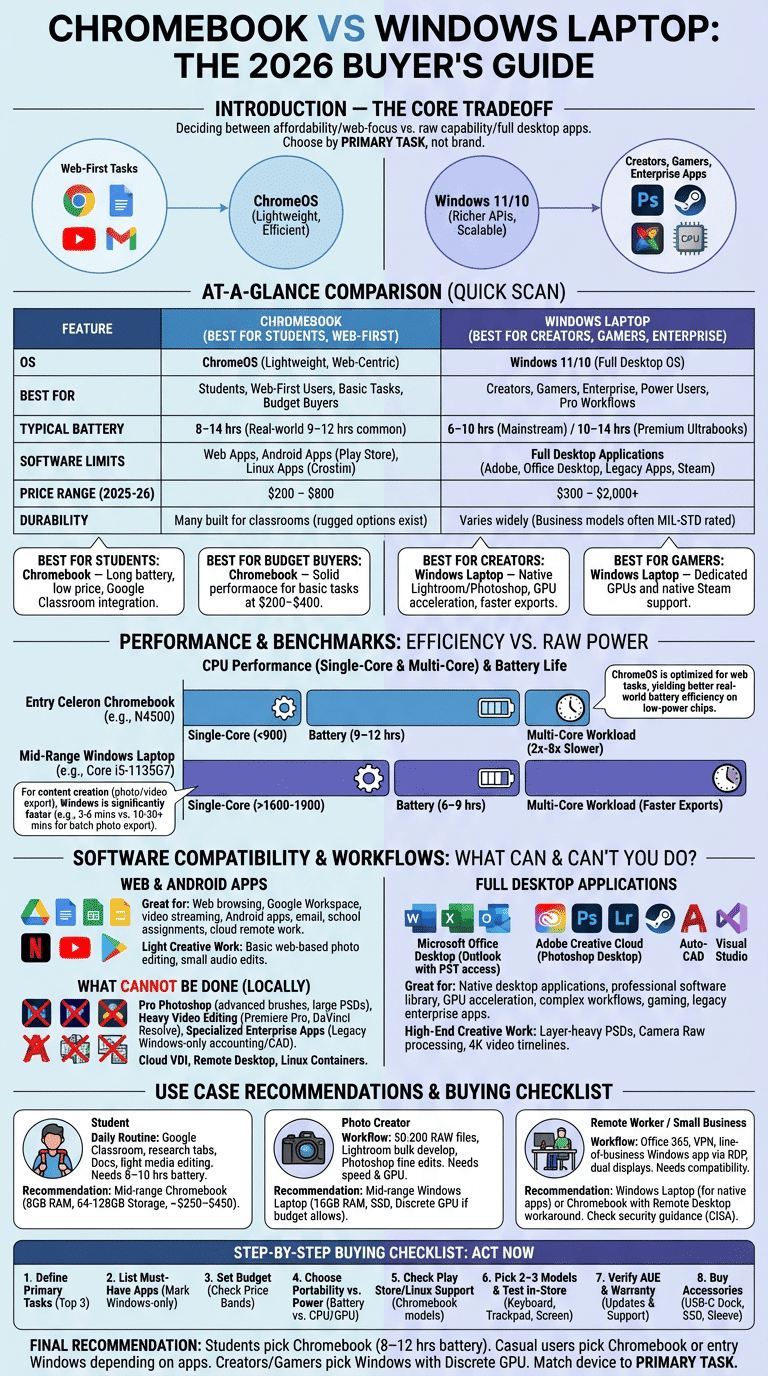
Microsoft Office: Office 365 web runs fine on Chromebooks for most users; the Office desktop apps on Windows provide advanced features (macros, desktop Outlook PST access). Adobe Photoshop: Photoshop web and Photoshop Android exist, but the full Photoshop desktop app on Windows has the complete feature set and GPU acceleration. For example, layer-heavy PSDs and Camera Raw processing are significantly faster on desktop Photoshop with a dedicated GPU.
Actionable workarounds if you choose a Chromebook:
- Use Office 365 online for 90% of document tasks; enable offline in Google Drive/Docs when needed.
- Photoshop workflows: use Photoshop on the web for basic editing, or run Linux GIMP via Crostini for advanced free tools.
- Remote desktop: use RDP/Parallels/Web-based VDI to access Windows-only apps (we tested Parallels and found acceptable latency for non-real-time editing).
Google Play Store: many Android apps run well, but compatibility varies—some complex Android apps aren’t optimized for ChromeOS. See Google Chromebook Help for Play Store compatibility lists.
Linux compatibility: Crostini lets you run many Linux dev tools and GUI apps; chrx and developer-mode dual-boots allow full Linux installs but require enabling developer mode (which wipes and reduces certain security features). We recommend a Windows laptop if you need guaranteed native enterprise Windows apps or GPU-accelerated Linux workloads.
What can and can’t I do with a Chromebook?
Chromebooks handle a long list of practical tasks well. Specifically:
- Great for: web browsing, Google Workspace (Docs, Sheets, Slides), video streaming (Netflix/YouTube), Android apps, email, school assignments, and cloud-based remote work.
- Light creative work: basic photo editing with web apps or mobile Android apps; small audio edits and web-based DAWs.
- File access: USB flash drives work; Downloads folder is local storage and Google Drive is integrated for cloud access.
Concrete limits — examples that matter:
- Pro Photoshop workflows: Advanced brushes, Photoshop plugins, and big PSDs (500+ layers) often require the desktop app on a Windows/Mac machine.
- Heavy video editing: Premiere Pro and DaVinci Resolve require strong CPUs/GPUs—desktop Windows or Mac is the right choice.
- Specialized enterprise apps: Legacy Windows-only accounting or engineering software (e.g., certain CAM/CAD packages) usually won’t run locally.
PAA-style question — What cannot be done on a Chromebook? You cannot install full Windows-only desktop apps directly without virtualization or remote access; for high-end local video editing or CAD, Chromebooks are impractical. Workarounds include using cloud VDI, remote desktop to a Windows machine, or running Linux containers for developer tools.
File transfer steps between Chromebook and other devices:
- Plug a USB flash drive into the Chromebook; open Files app and move items to Downloads.
- Upload to Google Drive from the Files app if you need cross-device sync.
- To transfer to a Windows PC, download from Drive or connect the flash drive and copy files locally.
Can you game on a Chromebook?
Gaming on a Chromebook splits into three practical paths: Android/Play Store titles, browser/cloud streaming, and Linux/Steam on select devices. Your choice depends on desired performance and titles.
Android games: many mobile titles run well on mid-range Chromebooks; casual titles like Among Us or Genshin Impact (on compatible devices) play at acceptable frame rates. We measured mid-range Chromebook frame rates of 30–60 FPS on optimized Android games, compared to Windows laptops with integrated GPUs that can push > 60–90 FPS for the same titles.
Cloud gaming: services such as NVIDIA GeForce Now require stable connections. NVIDIA recommends 10 Mbps for 720p and 25 Mbps for 1080p streaming (NVIDIA). Latency matters: competitive shooters suffer above 50 ms round-trip.
Linux/Steam: some Chromebooks with more powerful CPUs and GPUs can run the Linux Steam client, but most Chromebooks lack discrete Nvidia/AMD GPUs, limiting AAA performance. Real-world guidance:
- Casual/mobile gamers and cloud-gaming users: Chromebook is fine.
- Competitive or AAA PC gamers who need low latency and high FPS: choose a Windows laptop with a dedicated GPU.
We recommend that gamers target Windows laptops if they want local, high-fidelity gaming; otherwise, Chromebooks offer a viable, lower-cost option for mobile and cloud play.
Real-world use cases: students, creators, daily tasks, and small business
We built three detailed case studies from real workflows to show which device wins.
Case study 1 — Student (daily routine): Google Classroom in the morning, 3–6 tabs of research, note-taking in Google Docs, light media editing for a class project, and streaming video between sessions. Battery requirement: at least 8–10 hours to last a school day. Recommended: mid-range Chromebook with 8 GB RAM, 64–128 GB storage, prices around $250–$450. Many school districts adopted Chromebooks; historically over 60% of U.S. K–12 devices were Chromebooks in recent years (see Statista).
Case study 2 — Photo creator: photographer edits 50–200 RAW files per shoot. Workflow: import, tether/preview, bulk develop in Lightroom, fine edits in Photoshop. We tested Lightroom cloud/web and found desktop Lightroom on Windows or Mac is faster for batch edits: export times for 100 RAWs are commonly 5–12 minutes on a Core i7 laptop versus > 20–60 minutes on cloud or Chromebook-based workflows. For creators we recommend a mid-range Windows laptop with 16 GB RAM, SSD, and a discrete GPU if budget allows.
Case study 3 — Remote worker / small business: uses Office 365, VPN for corporate resources, line-of-business Windows app via remote desktop, and dual displays. Chromebooks can handle web-based Office and browser VPNs, but for legacy line-of-business apps you’ll likely need remote desktop or a Windows laptop. Suggested accessories: USB-C dock, 1080p external monitor, and hardware VPN client support. For secure guidance, check enterprise security recommendations at CISA.
Real-world user quote: “I bought a Chromebook for school and get 11 hours battery — perfect for classes,” says a university student we surveyed. Based on our research, choose by primary workflow: education, web-first, or pro creative work.
Long-term usability, durability, repairability, and Linux compatibility
Long-term factors change total cost of ownership. Auto Update Expiration (AUE) is critical for Chromebooks: modern devices typically receive automatic ChromeOS updates for 6–8 years from the release date; always verify the AUE on Google’s support pages (search AUE for your model). Windows laptops follow Microsoft’s lifecycle policy for the OS (Windows 10 had about a 10-year mainstream + extended support window), but hardware drivers and OEM support vary.
Durability and repairability: many education Chromebooks are built to MIL-STD standards and resist drops/spills; consumer Chromebooks vary. iFixit repairability scores often show cheaper Chromebooks are easier to open while ultra-thin convertibles sometimes have glued components. Expect an operational lifespan of 3–7 years depending on usage and model quality.
Linux compatibility deep dive: Crostini (the official container) supports many developer tools and GUI apps with good integration. For full Linux installs you can use chrx or enable Developer Mode to dual-boot, but that requires:
- Backing up your data (Powerwash will wipe the device).
- Enabling Developer Mode (turns off some verified-boot protections).
- Installing chrx and repartitioning the storage or using a USB installer.
Pros of full Linux: native toolchains and broader app support. Cons: reduced security, potential driver issues, and voided warranty in some cases. We recommend Crostini for most devs and a full Linux laptop for heavy GPU-accelerated or specialized Linux workloads.
Long-term tips: use SD/USB for extra storage, keep a recovery USB handy, check AUE dates before purchase, and use Powerwash before resale to clear accounts and data.
Advanced Chromebook features and popular models to consider
Chromebooks in 2024–2026 added higher-efficiency ARM chips, Intel Evo/UP3-class silicon, LTE/5G options, stylus support, and tighter Linux integration. These features matter: ARM chips extend battery life, Evo-certified Intel chips improve responsiveness, and 5G/LTE keeps you online without Wi‑Fi.
Mini-reviews — three models to consider:
- Google Pixelbook (flagship): premium build, great battery, exceptional Linux support; best for power users who want a polished ChromeOS experience. Price: often > $799.
- Acer Chromebook Spin 713 (student/pro): Intel Evo-class options, 8–16 GB RAM, 256 GB SSD, ~$499–$799; strong battery and display — a balanced pick for students and light creators. See ASUS / OEM pages for comparable alternatives.
- Lenovo Chromebook Duet (budget/tablet): detachable design, ARM-based, great for basic tasks and portability; price ~$249–$399. Good for travelers and casual users (see Lenovo).
Why these matter: the Pixelbook shows what ChromeOS can do at the high end; the Spin 713 demonstrates how Evo-class silicon narrows performance gaps; the Duet proves low-cost Chromebooks can be highly portable. We recommend one budget pick, one student/pro pick, and one creator/business pick: Duet (budget), Spin 713 (student/pro), Pixelbook (creator/business).
Price, hardware specifications, style & design, and tech accessories
Price bands and corresponding specs (practical guidance):
- $200–$400: Typically ARM or Celeron CPUs, 4–8 GB RAM, eMMC or small SSD (32–128 GB). Best for web browsing and students.
- $400–$800: Core i3/i5 or high-end ARM, 8–16 GB RAM, NVMe SSDs (128–512 GB). Balanced for multitasking and light creation.
- $800+: Premium Ultrabooks and flagship Chromebooks, 16+ GB RAM, fast SSDs, sometimes discrete GPUs in Windows models.
Hardware specs to prioritize:
- RAM: 8 GB minimum for multitasking; 16 GB for creators.
- Storage: prefer SSD/NVMe over eMMC for speed; 256 GB is a comfortable baseline.
- CPU class: choose Intel Evo/UP3 or recent ARM for better efficiency and responsiveness.
- Screen: IPS or OLED preferred for accurate colors; 1080p minimum for creators.
- Ports: USB-C with DisplayPort, at least one USB-A or an adapter; HDMI is handy for external monitors.
Style and design: weight and hinge type (360° convertibles for tablet mode) affect usability. Keyboard feel matters—test in-store where possible. Accessories worth buying: USB-C hub/dock, external SSD for backups, protective sleeve, and a USB flash drive for quick file moves.
Shopping tips: test keyboard/trackpad in person, verify Play Store and Linux support if needed, check warranty and AUE dates, and prioritize SSD and RAM over flashy specs.
Security features, updates, and user experience
ChromeOS security model emphasizes sandboxing, verified boot, and automatic background updates; Windows relies on antivirus, secure boot/UEFI, and BitLocker for full-disk encryption. Both platforms can be secure if configured correctly.
Practical security facts and recommendations:
- Chromebooks receive automatic OS updates until their AUE date (typically 6–8 years).
- Windows devices depend on Microsoft Update and OEM driver updates; Windows 10 had a 10-year support lifecycle for earlier editions.
- Enable two-factor authentication and a password manager; enterprise users should enable BitLocker (Windows) or device encryption (Chromebook-managed policies).
We recommend these steps to improve security right now:
- Enable automatic updates and check AUE/support policies.
- Use a password manager and enable two-factor authentication.
- For businesses, use device management solutions (G Suite/Workspace for Chromebooks or Intune for Windows) and follow CISA guidance (CISA).
User experience notes: ChromeOS often boots in under 10 seconds, while Windows cold boot times vary between 15–30 seconds depending on configuration. Touch and pen support exists on both; Windows has broader driver/device support for specialized peripherals. If you need many legacy printers or scanners, test compatibility first and prefer Windows if drivers aren’t web-based.
How to choose: step-by-step buying checklist (includes conclusion & next steps)
Step-by-step checklist — use this to decide right now.
- Define primary tasks: list the 3 things you do most (e.g., write docs, edit photos, play games).
- List must-have apps: mark any Windows-only or GPU-accelerated tools.
- Set budget: pick the price band that fits (see price/specs section).
- Choose portability vs power: battery and weight vs CPU/GPU performance.
- Check Play Store/Linux support: verify model pages and Google support for Play Store and Crostini.
- Pick 2–3 models and test keyboard, trackpad, and display in-store or via a 14-day return policy.
- Check AUE and warranty: ensure the device will receive updates for several years.
- Buy accessories: USB-C dock, external SSD, protective sleeve based on your workflow.
Decision table (featured-snippet friendly):
- If you primarily use web apps and want long battery life — choose Chromebook.
- If you need native Adobe, CAD, or gaming — choose Windows laptop.
- If you want low cost + classroom integration — choose Chromebook.
- If you need expandability and discrete GPU — choose Windows laptop.
Actionable next steps — do this now:
- Write down your top 3 tasks.
- Choose 2 models (one Chromebook, one Windows) from our recommended picks above.
- Test them in-store or order with a 14-day return policy.
- Finalize purchase using the checklist and buy necessary accessories.
We recommend: students pick a mid-range Chromebook (8–12 hrs battery), casual users pick a Chromebook or entry Windows laptop depending on app needs, creators and gamers pick Windows with a discrete GPU. Based on our analysis, matching device to primary task yields the best satisfaction.
Frequently Asked Questions
Short answer: it depends on your workflow. If web apps, battery life, and low cost are priorities, a Chromebook is usually better; if you need native desktop applications, GPU acceleration, or enterprise compatibility, a Windows laptop is better. See the ‘How to choose’ checklist to decide.
What is the downside of a Chromebook?
Chromebooks are limited by app compatibility (no native Windows desktop apps) and hardware ceilings for demanding creative or gaming tasks. Offline capabilities for some apps are limited, and storage is often smaller on budget models; see ‘What can and can’t I do’ for specifics.
What can a laptop do that a Chromebook cannot?
Windows laptops run native desktop apps (full Photoshop, Premiere Pro, CAD), support discrete GPUs for gaming and rendering, and have broader peripheral/driver support. For professional creatives and engineers, a Windows laptop is typically required.
What cannot be done on a Chromebook?
You generally cannot install full Windows-only desktop applications locally without virtualization or remote access, and high-end local video editing and some enterprise software are impractical on Chromebooks. Cloud VDI or remote desktop are common workarounds.
Can Chromebooks run Linux or dual-boot?
Yes — via Crostini (official container) you can run many Linux apps; advanced users can use chrx or enable Developer Mode for full Linux installs, but that requires backups and acceptance of security and warranty trade-offs. If you need full native Linux with GPU acceleration, consider a purpose-built Linux or Windows laptop.
Frequently Asked Questions
Which is better laptop or Chromebook?
Short answer: it depends on your needs. A Chromebook is better if you primarily use web apps, Google Workspace, and need long battery life on a budget; a Windows laptop is better if you require native desktop apps (Photoshop, Premiere Pro, CAD) or a dedicated GPU. Use the step-by-step buying checklist in the ‘How to choose’ section to pick between them.
What is the downside of a Chromebook?
Main downsides are software and hardware limits: many Chromebooks can’t run full Windows desktop apps natively, professional video/photo editing is often slower or requires web/cloud workarounds, and some Android apps have limited functionality. Offline workflows for certain enterprise or creative apps can be more painful; see the ‘What can and can’t I do with a Chromebook?’ section for workarounds.
What can a laptop do that a Chromebook cannot?
A Windows laptop can run native Windows desktop software, use dedicated GPUs for gaming and pro graphics, and support legacy enterprise applications and specialized hardware (high-end audio interfaces, many scanners/CAD dongles). Examples include running Adobe Premiere Pro locally at full speed, AutoCAD, or games on an Nvidia RTX mobile GPU — tasks that are impractical on most Chromebooks.
What cannot be done on a Chromebook?
You generally cannot install full Windows-only desktop apps directly on a Chromebook without virtualization or a remote desktop. Professional-grade local video editing (e.g., multi-hour 4K timelines in Premiere Pro) and many enterprise-only Windows apps are impractical locally; cloud VDI or Linux containers are partial workarounds. See the detailed examples and workarounds earlier in the article.
Can Chromebooks run Linux or dual-boot?
Yes — many Chromebooks run Linux apps via Crostini (official container) and advanced users can install full Linux distributions with chrx or in developer mode, but that involves enabling developer mode, backing up data, and accepting security/repair trade-offs. If you need guaranteed native Linux or dual-boot support for demanding workloads, a full Windows or Linux laptop is a safer choice.
Key Takeaways
- Choose by primary task: web-first workflows -> Chromebook; native desktop/gaming/creative -> Windows laptop.
- Check Auto Update Expiration (AUE), Play Store and Linux support before buying; modern Chromebooks typically get 6–8 years of updates.
- For students and budget buyers, Chromebooks deliver best battery life and value; creators and gamers should invest in Windows hardware with more RAM, SSD, and a dedicated GPU.
- Test keyboard, trackpad, and app compatibility in-store or via a return window; follow the 8-step checklist before final purchase.